



USPS Smart Lockers for Package Shippers
A free and secure way to ship packages.
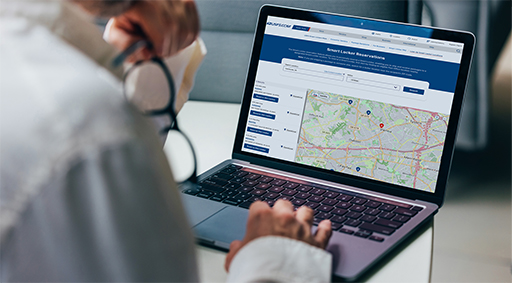
Find a Smart LockerWhether you are a small business owner or sending a gift to a loved one, you can rest easy knowing your package will be delivered to a secure USPS® Smart Locker location. Plus, your package recipient can enjoy the flexibility of picking up their package at a time that works for them.
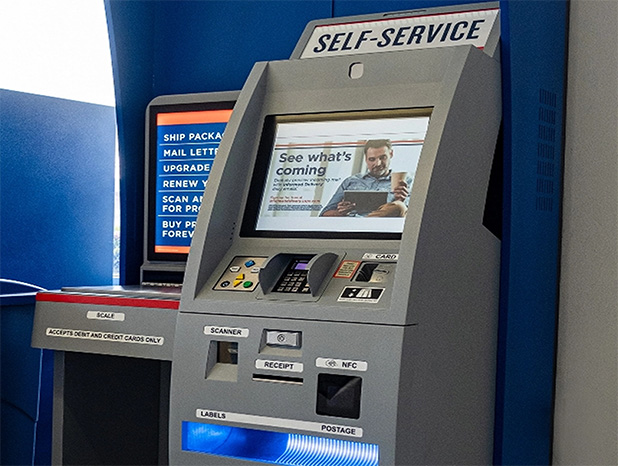
Self-Service Kiosk: Save time waiting in the retail line by using the self-service kiosks at Post Office™ locations to print labels and ship packages directly to a USPS Smart Locker:
Once the package is ready to be picked up at the Smart Locker, your recipient will get an email with a Pickup QR Code®1 and instructions.

USPS Click-N-Ship service lets you print labels and ship packages to a USPS Smart Locker, right from your home or office:
It's free to ship and receive packages using USPS Smart Lockers.
Senders must use USPS Ground Advantage®, Priority Mail Express®, Priority Mail® (and their corresponding Return services), or Media Mail®. (Commercial senders can also use Bound Printed Matter and Library Mail.)
US domestic packages only: No cards, letters, or anything that requires a customs form.
The sender must have the recipient's email address. (The package pickup notification and Pickup QR Code will be sent to that email).
Packages must fit in a USPS Smart Locker; the absolute maximum size that can be shipped to a Smart Locker is 22.5” x 18” x 16.5”, though some Smart Lockers have smaller size limits.
Replace in-person handoffs by using USPS Local XChange™ to make contactless, secure, and convenient local merchandise exchanges.
Would you like to integrate Ship to USPS Smart Locker into your checkout flow? Learn how you can offer your customers a free, secure, and convenient option by using USPS APIs to activate USPS Smart Lockers in your ecommerce platform.
Learn More1. QR Code® is a registered trademark of Denso Wave Incorporated. Back ^
2. For details on free Package Pickup, visit Schedule a Pickup. Back ^
3. See current price, listed as USPS Connect Local Flat Rate Box. Back ^

